
Applies to Event Management & Employee Training Management
Troubleshooting: Users Do Not Receive Email Invitations/Notifications
Overview
If users report that they have not received an email invitation for an event they are enrolled in, follow the steps below to identify whether the email was sent successfully and, if not, how to resolve the issue.
Step 1: Check the Enrollment Status and Reply
-
Open the event.
-
Click Manage Enrollments.
-
Review the Reply column for the affected attendees.
The value shown in the Reply column determines the next troubleshooting steps.
Scenario 1: Reply Column Shows Invited
If the Reply column shows Invited, the app has successfully sent the email invitation.
What to Check Next
-
Verify email delivery
-
Use Exchange Message Trace to confirm whether the email was delivered or blocked.
-
-
Ask the user to check their Junk/Spam folder
-
Email invitations may be filtered by the recipient’s mail system.
-
-
Sapiens Email Service users
-
If you are using the Sapiens Email Service and emails are landing in junk mail, refer to the following article for guidance:
-
Scenario 2: Reply Column Is Empty or Shows Pending or Error
If the Reply column is empty or shows Pending or Error, the app may not be able to send emails due to a configuration issue.
How to Get More Details
-
In Manage Enrollments, add the Error Message column.
-
Review the error message to identify the root cause (for example, authorization or configuration issues).
Verify Email Settings
-
Open the For Administrators section.
-
Click Open app settings.
-
In the Email Settings section:
-
Click Verify.
-
If an error is shown, click Authorize and re-authorize the email account. If you experience any issues when re-authorizing, please read the following article: https://www.sharepointsapiens.com/help/documentation/troubleshooting-reauthorizing-the-email-account/
-
After authorization is completed successfully, try sending the email again.
Scenario 3: Reply Column Shows Undeliverable
If the Reply column shows Undeliverable, the email was sent but could not be delivered to the recipient.
How to Investigate
-
In Manage Enrollments, add the following columns:
-
Error Message
-
Undeliverable Report
-
-
Review these columns to determine why delivery failed (for example, invalid email address, blocked recipient, mailbox issues).
Scenario 4: Reply Column Is Empty (Event-Level Checks)
If the Reply column is empty and no error is shown, verify the event configuration:
-
✅ Make sure the event is in the future
Emails are not sent for past events. -
✅ Check the “Send E-Mails” setting
Ensure the Send E-Mails column is not set to Do not send e-mails.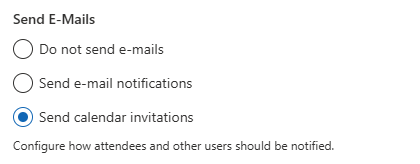
Scenario 5: User Has No Email Address
If a user does not have an email address, no email invitation can be sent.
How to Verify
-
Open the event.
-
Go to Manage Enrollments.
-
Add the E-Mail column to the view.
-
Ensure the column contains a valid email address for the affected users.
⚠️ If the E-Mail column is empty or contains an invalid address, the system will not send an email invitation.
Step 2: Verify Email Templates
Email invitations will not be sent if email templates are not properly configured.
-
Open App Settings.
-
Navigate to Email Templates.
-
Ensure that:
-
A subject is defined.
-
A body is defined.
-
⚠️ If either the subject or body is empty, email invitations will not be sent.
Summary Checklist
Use this checklist for quick troubleshooting:
-
☐ Reply column shows Invited → Check delivery (Message Trace, Junk folder)
-
☐ Reply column shows Error → Verify and reauthorize Email Settings
-
☐ Reply column is empty → Check event date and “Send E-Mails” setting
-
☐ Email templates are configured with a subject and body
If all checks pass and users still do not receive emails, collect diagnostic information (event details, user email address, version history) and escalate to support for further investigation.