
Applies to Event Management & Employee Training Management
Understanding Banner Behavior in Detail and Course Pages
Overview
Many items in our SharePoint|sapiens apps Event Management and Employee Training Management support banner images to enhance the visual presentation of Events, Topics, Courses, and Curricula.
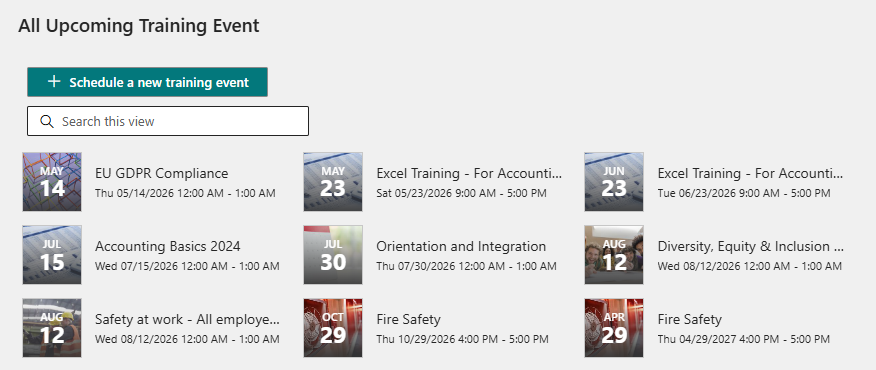
Banners are a key element for improving the user experience across your solutions. They help users to quickly recognize and visually distinguish different items, making navigation and orientation much easier—especially in environments with many events or training offerings.
Banners are not only displayed on detail or course pages, but are also used in multiple places throughout the solution, for example:
-
In list views
-
As header images in tile views
-
As background images in compact list views
-
In other visual web parts and components
Because of this, a well-configured banner strategy ensures a consistent and professional appearance across the entire application.
Banners can be configured in multiple locations:
-
Directly on the list item (using the Banner URL and Banner Preview columns)
-
On default pages
-
On custom detail or course pages
Additionally, when working with pages, you can either upload your own images or use the SharePoint stock image library, which provides a wide range of high-quality visuals.
Since banners can be defined in different places and are reused across related items (such as events linked to topics or courses), it is important to understand how banner resolution works.
This article explains:
-
How banners are resolved when a custom detail or course page exists
-
How fallback logic works when no custom page is available
-
How banners are inherited across related items (e.g. events, topics, courses)
Banner Basics
Banners can be defined in:
-
The list item (Banner URL and Banner Preview column)
-
The course or details page itself (especially custom pages). This article explains how course or details pages work and how they can be created.
Banner Fallback Logic
Event Banner Resolution
Custom page exists?
        ↓
     YES → Use banner from custom page
        ↓
      NO
        ↓
Event linked to Topic/Course?
        ↓
     YES → Use Topic/Course banner
        ↓
      NO
        ↓
Use default event page banner
Topic & Curriculum Banner Logic
Custom page exists?
        ↓
     YES → Use custom page banner
        ↓
      NO
        ↓
Use default page banner
Detailed Rules
Events
If custom details page exists → Banner from custom details page is used
If no custom details page exists
-
If linked to Topic or Course
→ Banner from Topic/Course -
Otherwise
→ Banner from default event page
Topics
-
Custom page → use its banner
-
No custom page → use default topic page banner
Curricula
-
Custom page → use its banner
-
No custom page → use default curriculum page banner
Key Principles
-
Custom details or course pages always override defaults
-
Related content (Topic/Course) can provide fallback
-
Default pages act as the final fallback
Summary
-
Banner behavior follows a fallback hierarchy
-
Custom pages override everything
-
Related items provide inherited banners
-
Default pages ensure consistency