
-
Getting Started
-
- The Configuration Guide for Employee Training Management on SharePoint online
- The Configuration Guide to Event Management on SharePoint
- How do I configure Permissions for Employee Training Management on SharePoint Online?
- How do I configure Permissions for Event Management on SharePoint online?
- How do I configure E-Mail settings in SharePoint Online with a user account?
-
User Guide
-
Events
- How to Create Recurring Events in SharePoint
- How-to: Group multiple events to enable single enrollment for all sessions
- How to: Promote and Share Events with the Copy Link Feature
- How to: Create events in draft mode & cancel events and enrollments in one click
- How to Enable External Organizers for Events in Sapiens Event Management
- How to specify external users as organizers, facilitators, and other contacts in an event form using a contact list
- Creating Informational Events Without Registrations in SharePoint Event Management
- How to Enroll in Past Events Within an Event Group
- Configure Outlook Calendar Invitation Reminders
-
Courses & Quizzes
- Configure a SCORM Cloud Account & Upload SCORM files on your SharePoint Site
- How to: Add New Achievement Options (No-Shows, Not-Achieved, Cancelled)
- How to create Self-paced Training & use our Complete Course Button webpart (Add quiz, track time, etc.)
- How to add a Quiz on SharePoint Online using Microsoft Forms
- How to: Use Microsoft 365 learning pathways in an Employee Training Management site
- How to: Create course pages with the Employee Training Management App
- Checking course completion using an anonymous quiz
- Using Curriculums in the Employee Training Management App
-
Enrollments
- How to: Copy existing enrollments from one event to the other with the Copy Enrollments option
- How to restrict the number of enrollment per user (covering the same topic/course)
- How to: Enroll Microsoft 365 groups and distribution lists
- How to: Request information upon enrollment
- How do I confirm attendance after an event?
- How to: Allow external users to enroll to events on SharePoint
- Manually managing RSVP responses in the enrollment list
- Enrolling Priority Users When an Event Is Fully Booked and a Waiting List Is Enabled
-
E-Mail
- How to: Send e-mail notifications or Outlook calendar invitations and prevent e-mail updates to be sent to attendees
- How to: Send additional e-mail notifications and create reusable email templates
- How to: Send an e-mail notification when you enroll users in a course
- How do I Forward RSVP status replies to an e-mail address
- Curriculum notification behavior and available workarounds
- Customizing Automatic Email Notifications per Event in Sapiens
- Exchange Mailbox: Use a User Mailbox Instead of a Shared Mailbox
-
Teams
-
Views, Forms & Pages
- Modify and apply changes to a Template Page (of an event, course,topic...)
- How to: Use our Landing Pages Samples
- How to: show events on multiple SharePoint websites (e.g. your intranet, company news, etc.)
- How to: Promote events to specific target audiences only
- How-to: Editing forms for events, topics, courses, etc.,
- How to: Hide an event until a specific date
- How to: Personalize list views and create a Calendar View in SharePoint Online
- How to: Create customizable event pages On your SharePoint site
- Understanding Detail Pages and Course Pages
- Understanding Banner Behavior in Detail and Course Pages
- Managing and Customizing the Manage Enrollments View
- Options for Providing Course Information, Enrollments and Achievements to Trainers and Organizers
-
Reporting
-
Time Zones, Regions & Languages
-
Power Automate & Power Apps
- Automated check-in: how to send a ticket containing a QR Code and scan it upon registration
- How to: use Power Automate to show events to a specific target audience
- How to: Add users to the Employee Training Management learner list
- How to: Collect feedback after an event using Microsoft Forms
- Import Achievements from a Spreadsheet Using Power Automate
- Send email reminders before an event occurs
-
Installation, Updates & Uninstall
- How to add Event Management to SharePoint online
- How to add Employee Training Management to SharePoint Online
- How to add Employee Training Management to my Microsoft 365 Environment
- How to add Event Management to my Microsoft 365 environment
- Update the SharePoint|sapiens Apps
- Entra ID App-Permissions requested by Sapiens Apps
- How do I upgrade from SharePoint Add-in to Microsoft 365 App
- Employee Training Management in Microsoft Teams
- Event Management in Microsoft Teams
- Update Event Management app on all sites in the tenant using PowerShell
- How to Remove the SharePoint|sapiens App from your SharePoint Site
- Change Log and Release Notes for SharePoint|sapiens Apps
- Manual steps after the Sharegate migration
- Upgrade from Exchange Web Services (EWS) to Microsoft Graph API
-
Troubleshooting & Known Issues
-
- Troubleshooting: Users Do Not Receive Email Invitations/Notifications
- What can I do if emails from SharePoint|sapiens Apps get lost in Junk Mail?
- Troubleshooting - Exchange Room Not Receiving Meeting Requests
- Troubleshooting: Meeting Response (RSVP) Not Updated in Enrollment View
- Troubleshooting: Re‑authorizing the Email Account
-
Retention & Recovery
-
License
-
- Articles coming soon
Applies to Event Management & Employee Training Management
Hide an event until a specific date
This article shows you how to add an enrollment start date to your events and training and hide them from your users until registration starts. It is a great feature if you do not want to show events and trainings before registration is allowed or if you are waiting for approval and still want to prepare it on your SharePoint site.
Prerequisites
Make sure you have the app SharePoint|sapiens Modern User Interface version 1.4.0.0 or higher installed. After installing the new version, open the Site Contents view on your SharePoint site, click on the app SharePoint|sapiens Event Management or SharePoint|sapiens Employee Training Management , click on Change Settings and save the settings again.
Add the Enrollment Start column to the event form
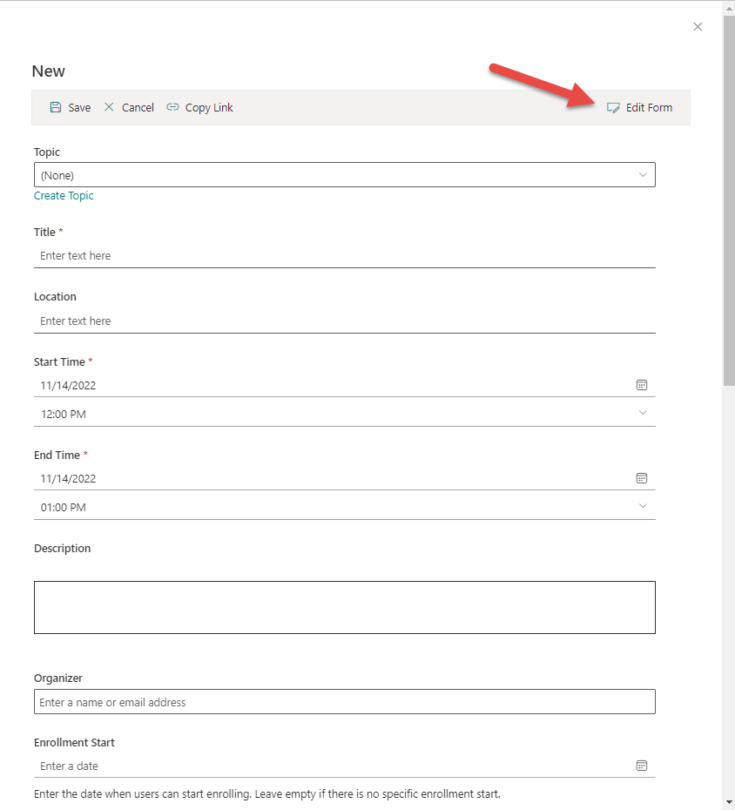
In the For Organizers section, open the event or create a new event. Click on Edit Form on the top right hand side of the form.
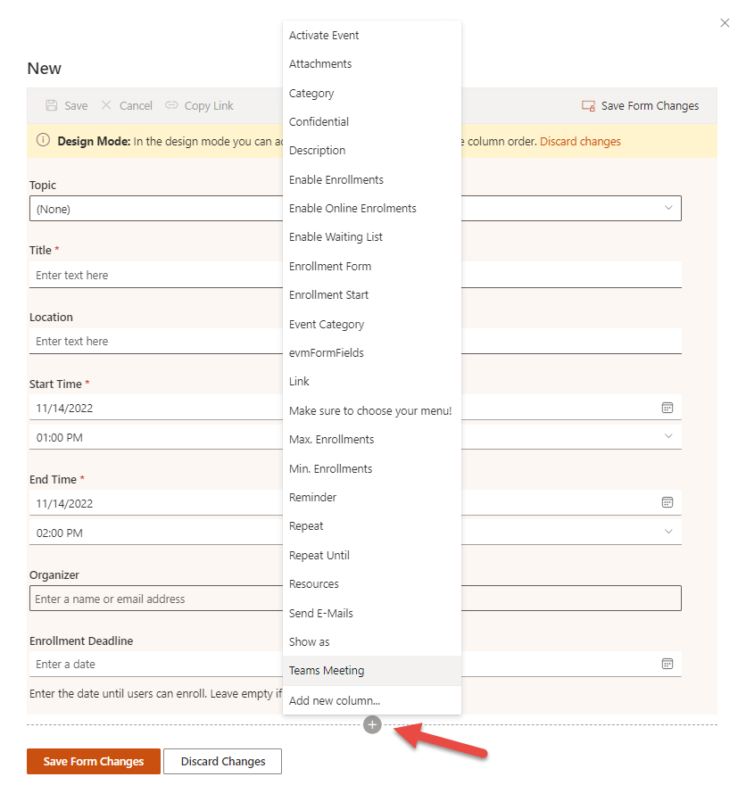
Scroll down and click on the + and choose the column Enrollment Start. Drag and Drop to place the column higher in the form (if requested) and click on Save Form Changes.
If you want to know more about editing the form: check our article on How-to: Editing forms for events, topics, courses, etc.,.
Add the Enrollment start date
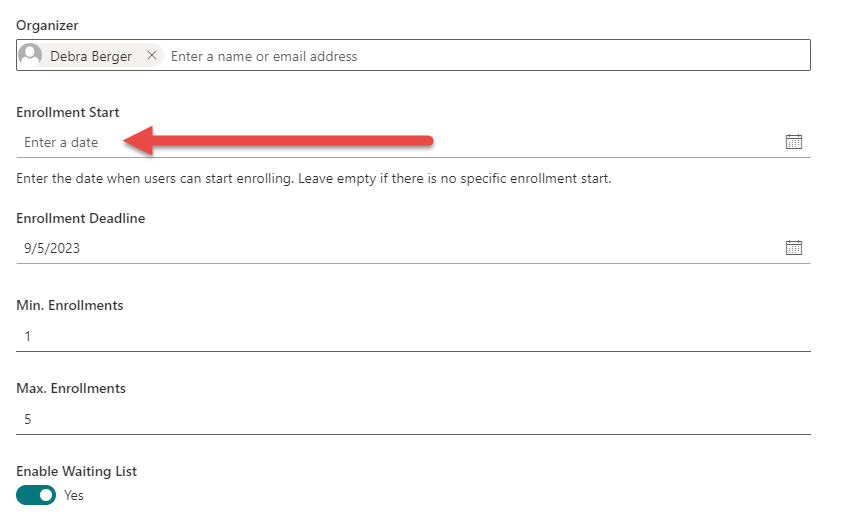
Once the column is added to the form, add the enrollment start date in the field.
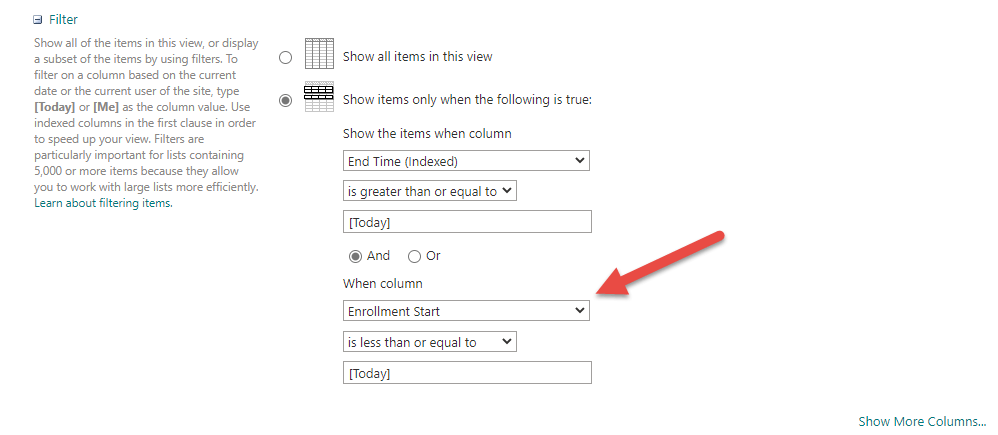
Hide events from users until enrollment starts
Select the All Upcoming Events list in the section For Attendees/For Learners
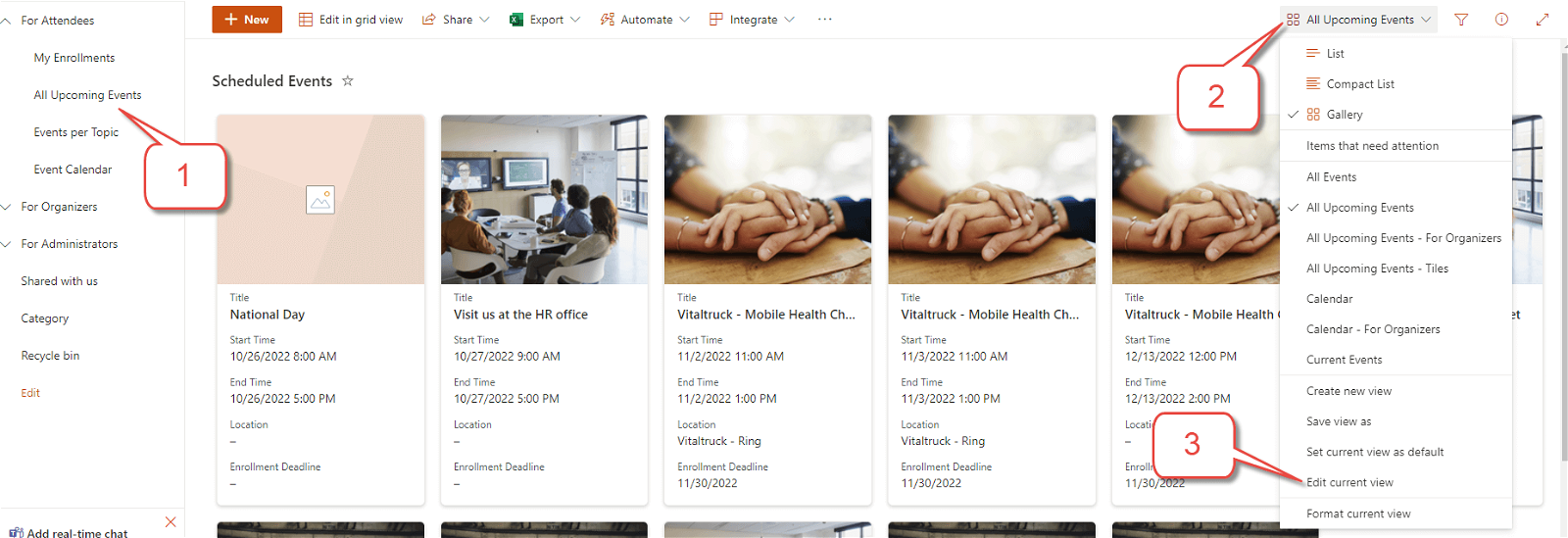
And configure the following filter to hide events before the enrollment date starts:
Show items only when the following is true:
You can learn more about views here: How to: Personalize how users can see upcoming events
We hope these instructions are helpful. If you have any questions, please send an e-mail to support@sharepointsapiens.com. We are happy to assist you!