
Applies to Employee Training Management
Options for Providing Course Information, Enrollments and Achievements to Trainers and Organizers
There are several ways to provide trainers and organizers with access to course information, enrollments, and achievements. The best option depends on how much information should be visible directly on the page and how much customization is required.
In many cases, the standard functionality provided by Employee Training Management is sufficient. However, additional pages can be created when a more guided experience or a consolidated reporting view is required.
Option 1: Use the Standard Course Page
For many scenarios, the standard course page already provides all the required information and no additional reporting page is necessary.
Every course has its own page that displays course information such as title, description, agenda, prerequisites, and other configured fields.
To obtain a link to this page:
-
Open the course.
-
Click Copy Link.
-
Select Link to list form (for organizers).
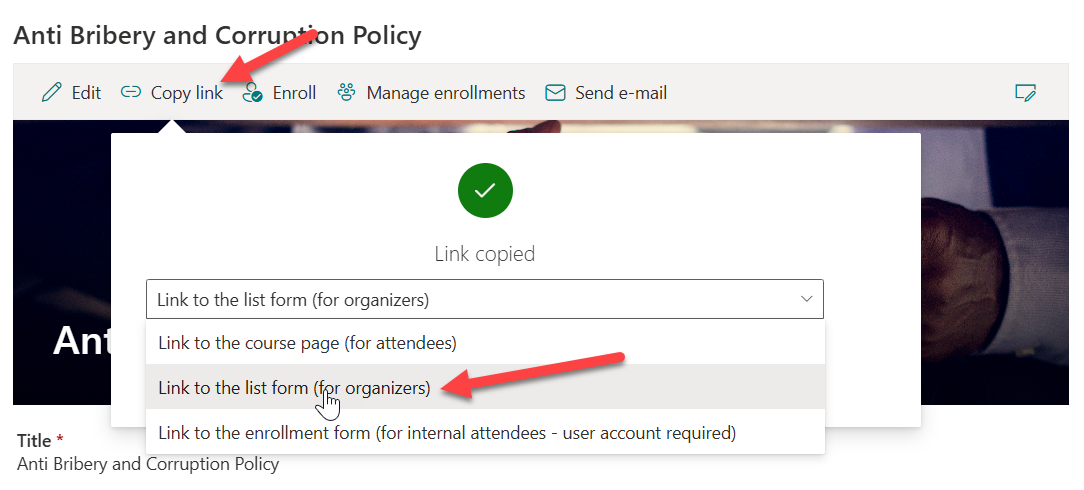
This link can be shared by email or placed on another page.
The course page displays all course information and provides access to additional functionality for users who have sufficient permissions.
If the current user has permission to manage enrollments, the command bar contains a command called Manage Enrollments.
Using this command, users can:
-
View enrollments for the course.
-
Manage course participants.
-
Open achievements related to the course.
For many trainers and organizers, this standard experience already provides everything that is required without creating additional pages.
Option 2: Create an Instructor or Organizer Information Page
Another option is to create a dedicated information page for instructors or organizers.
This approach is useful when course information should be presented together with additional guidance explaining how trainers and organizers can access enrollments and achievements.
The page can be built using a combination of a List Form Web Part and one or more Text Web Parts.
Instead of creating a separate page for every course, a single reusable page can be created that receives the Course ID through the URL.
https://contoso.sharepoint.com/sites/training/SitePages/CourseDetails.aspx?ItemID=123Displaying Course Information
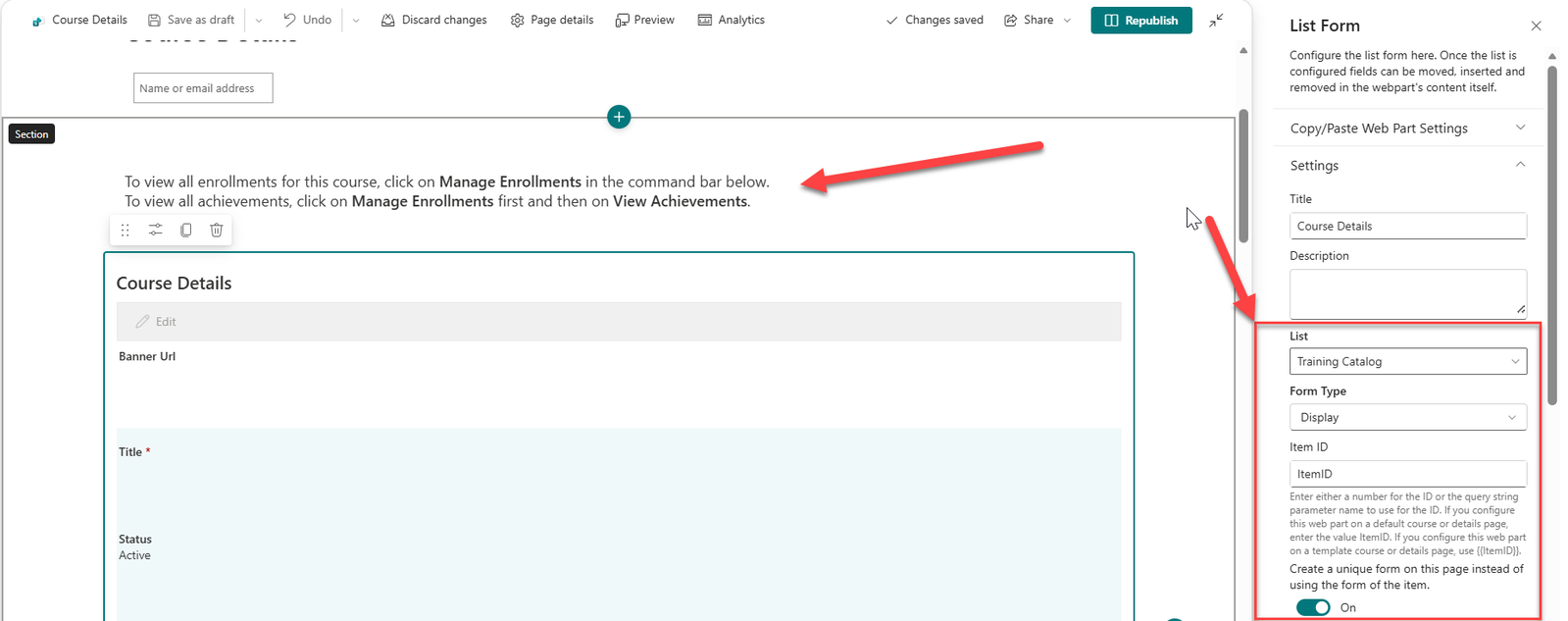
Add a List Form Web Part to the page and configure it to display the selected course.
The List Form Web Part allows trainers and organizers to view all important course information without navigating to the standard course form.
Providing Guidance for Trainers and Organizers
Add a Text Web Part above the course information explaining how enrollments and achievements can be accessed.
For example:
To view all enrollments for this course, click on "Manage Enrollments" in the command bar below.

To view all achievements, click on "Manage Enrollments" first and then on "View Achievements".
Additional instructions can also be included, such as:
-
How to manage participants.
-
How to approve or reject enrollments.
-
How to review achievements.
-
Links to related processes and procedures.
This option provides a cleaner experience for trainers and organizers by presenting course information together with contextual guidance while still using the standard enrollment and achievement management functionality.
Option 3: Create a Dedicated Reporting Page
For advanced reporting scenarios, a dedicated page can be created that displays course details, enrollments, and achievements directly on a single page.
This approach is especially useful when trainers frequently need to review enrollment and achievement information and should not have to navigate through multiple screens.
Instead of creating a separate page for every course, a single reusable reporting page can be created that receives the Course ID through the URL.
https://contoso.sharepoint.com/sites/training/SitePages/CourseReporting.aspx?ItemID=123In this example:
-
ItemID=123represents the Course ID. -
All web parts on the page use the
{{ItemID}}token to dynamically filter and display information related to the selected course.
Displaying Course Information
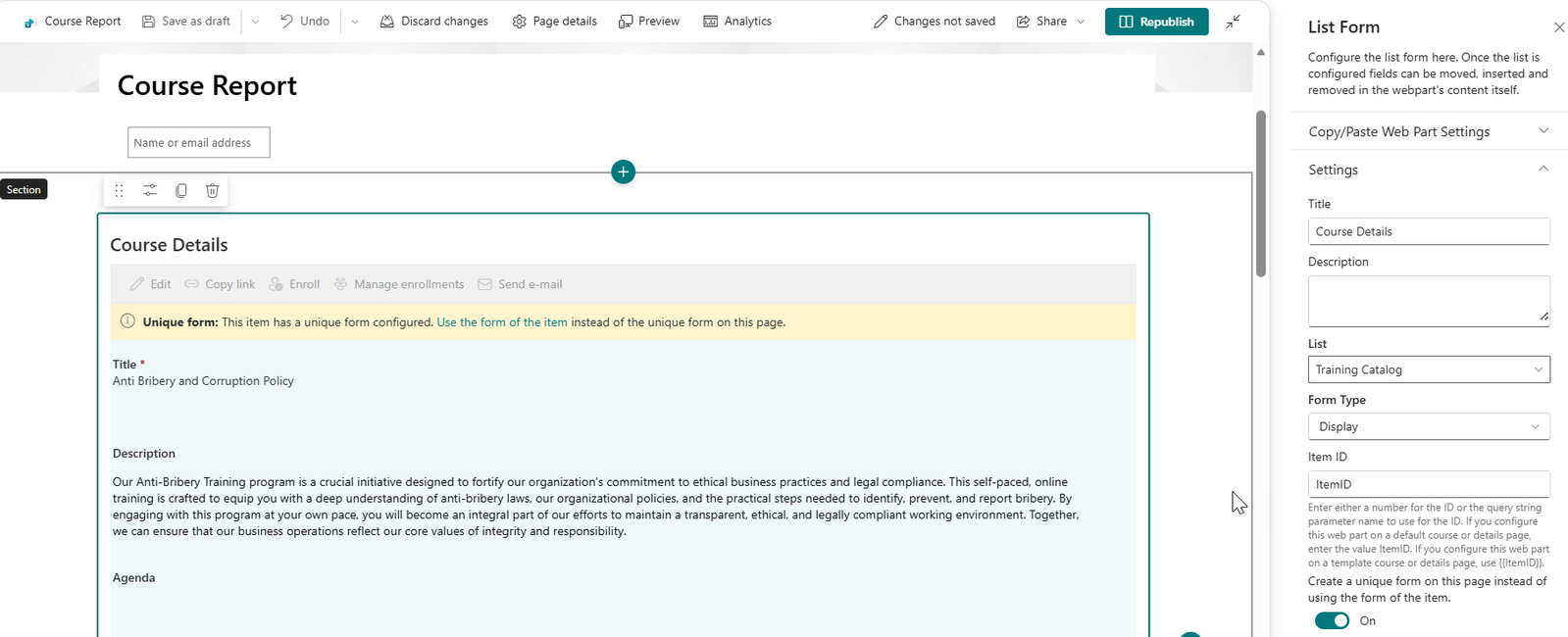
Add a List Form Web Part to the page.
Configure the List Form Web Part to load the course using the ItemID value passed in the URL.
The List Form Web Part can use the same query string property as all other web parts on the page, ensuring that all information is synchronized and displays data for the same course.
Displaying Enrollments
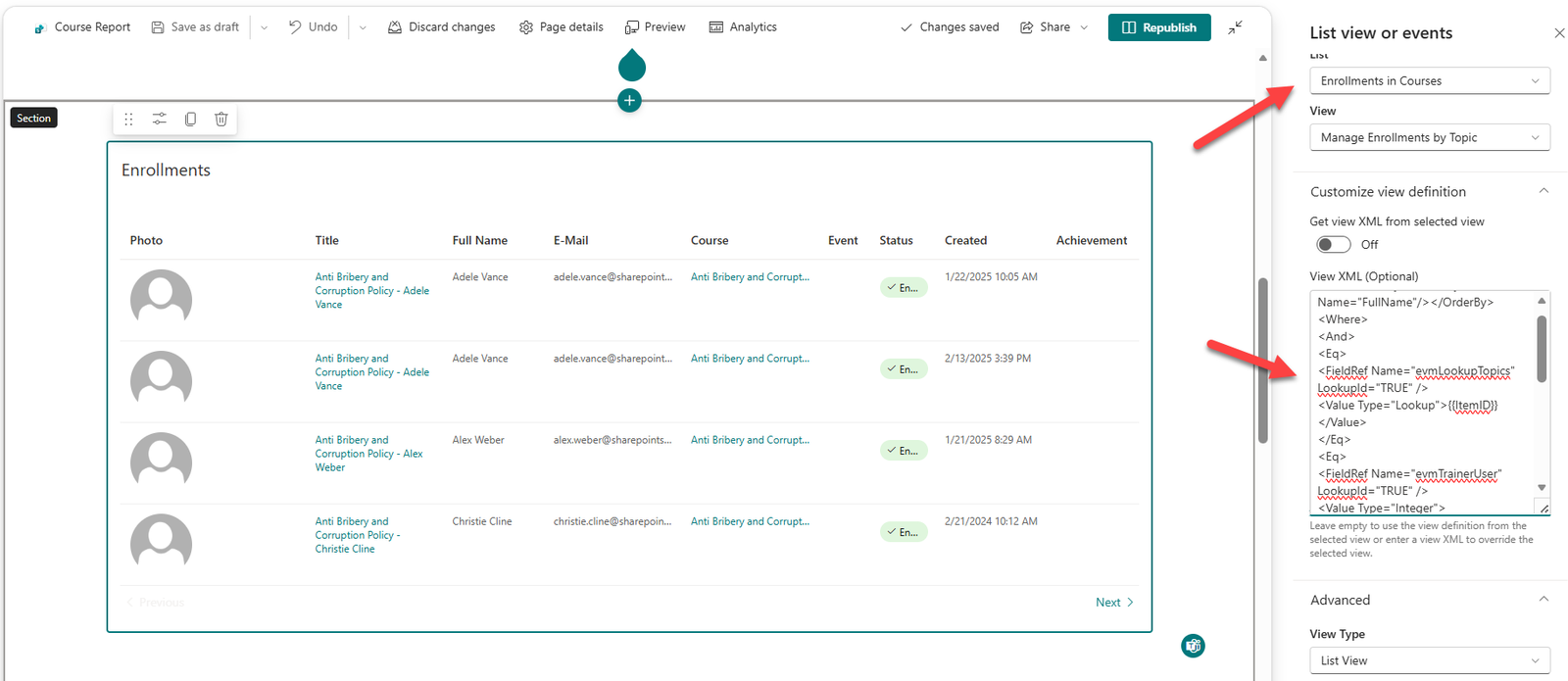
Add a List View or Events web part configured to display items from the Enrollments list.
Use a custom view definition with the following CAML query:
<Where>
    <Eq>
        <FieldRef Name="evmLookupTopics" LookupId="TRUE" />
        <Value Type="Lookup">{{ItemID}}</Value>
    </Eq>
</Where>
This ensures that only enrollments related to the selected course are shown.
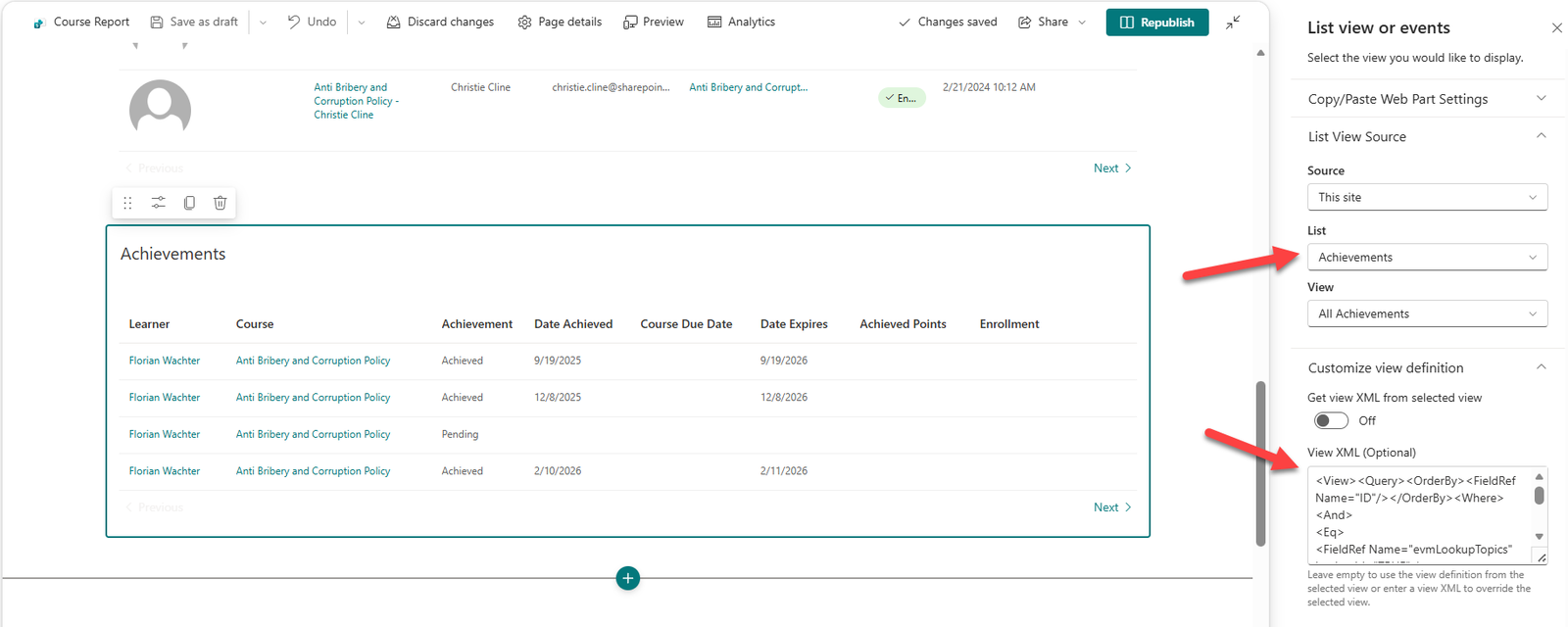
Displaying Achievements
Add another List View or Events web part configured to display items from the Achievements list.
Use a similar custom view definition:
<Where>
    <Eq>
        <FieldRef Name="evmLookupTopics" LookupId="TRUE" />
        <Value Type="Lookup">{{ItemID}}</Value>
    </Eq>
</Where>
The page will automatically display achievements related to the selected course.
Sharing the Reporting Page
The reporting page can be shared in several ways:
-
By email.
-
Through links on other pages.
-
Through navigation menus.
All links simply need to include the appropriate Course ID in the URL.
Security Considerations
When using reporting pages that rely on query string parameters such as:
?ItemID=123users may attempt to change the value manually:
?ItemID=124
?ItemID=125
Because SharePoint item IDs are incremental, users could potentially try different IDs to view information from other courses.
This is particularly important when reporting pages contain enrollment or achievement information.
Restricting Visibility to Trainers
A recommended approach is to add an additional filter that verifies the current user is configured as a trainer for the course.
The following CAML query combines a course filter with a trainer filter:
<Where>
    <And>
        <Eq>
            <FieldRef Name="evmLookupTopics" LookupId="TRUE" />
            <Value Type="Lookup">{{ItemID}}</Value>
        </Eq>
        <Eq>
            <FieldRef Name="evmTrainerUser" LookupId="TRUE" />
            <Value Type="Integer">
                <UserID/>
            </Value>
        </Eq>
    </And>
</Where>
This query ensures that:
-
The item belongs to the selected course.
-
The current user is configured as a trainer for the course.
Even if users modify the ItemID value in the URL, no information will be displayed unless they are configured as trainers for that course.
While this approach improves security, administrators should always review the overall SharePoint permissions model and data access requirements. Reporting pages should not be considered a replacement for proper list and item-level security.
Sample view definitions you can use
To show the enrollments on the page, use:
<View><Query><OrderBy><FieldRef Name="FullName"/></OrderBy><Where><And><Eq><FieldRef Name="evmLookupTopics" LookupId="TRUE" /><Value Type="Lookup">{{ItemID}}</Value></Eq><Eq><FieldRef Name="evmTrainerUser" LookupId="TRUE" /><Value Type="Integer"><UserID/></Value></Eq></And></Where></Query><ViewFields><FieldRef Name="PhotoCalc"/><FieldRef Name="evmLinkTitleNoMenu"/><FieldRef Name="FullName"/><FieldRef Name="EMail"/><FieldRef Name="evmLookupTopics"/><FieldRef Name="evmLookupEvent"/><FieldRef Name="evmEnrollStatus"/><FieldRef Name="Created"/><FieldRef Name="etmLookupAchievement"/></ViewFields><RowLimit Paged="TRUE">1000</RowLimit></View>
To show the achievements on the page, use:
<View><Query><OrderBy><FieldRef Name="ID"/></OrderBy><Where><And><Eq><FieldRef Name="evmLookupTopics" LookupId="TRUE" /><Value Type="Lookup">{{ItemID}}</Value></Eq><Eq><FieldRef Name="evmTrainerUser" LookupId="TRUE" /><Value Type="Integer"><UserID/></Value></Eq></And></Where></Query><ViewFields><FieldRef Name="etmLookupStudent"/><FieldRef Name="evmLookupTopics"/><FieldRef Name="etmAchievedCalc"/><FieldRef Name="etmDateAchieved"/><FieldRef Name="etmCourseDueDate"/><FieldRef Name="etmDateExpires"/><FieldRef Name="etmAchievedPointsCalc"/><FieldRef Name="evmEnrollment"/></ViewFields><RowLimit Paged="TRUE">1000</RowLimit></View>
Recommendation
Whenever possible, start with Option 1 because it leverages existing functionality and requires no additional maintenance.
Use Option 2 when trainers or organizers would benefit from additional instructions, guidance, or supporting information while viewing course details.
Use Option 3 when a consolidated reporting experience is required and enrollments, achievements, and course information should be displayed together on a single page.