
Applies to Employee Training Management
Employee Training Management App – Quick Start Guide
This Quick Start Guide helps you install and configure the Employee Training Management app in just a few minutes. For detailed, step‑by‑step walkthroughs, please refer to our full installation articles.
Before you start
To install the Employee Training Management app for the first time in your Microsoft 365 tenant, you must be a Microsoft 365 Global Administrator.
Site recommendations
We strongly recommend using a dedicated SharePoint site for the Employee Training Management app to simplify permissions, management, and long‑term maintenance. The bot guided installation allows you to select an existing site or create a new site for you. If you prefer to install the app to your SharePoint website manually, please prepare the website before you start with Option 2.
Trial information
When the app is installed for the first time in your tenant, a 30‑day trial begins automatically—no manual activation is required.
Installation options
You can install the Employee Training Management app using one of the following methods:
Option 1: Bot‑Guided installation (via Microsoft Teams)
-
Add the Employee Training Management bot to Microsoft Teams: https://teams.microsoft.com/l/app/17b6b751-7463-4afd-a3ae-ad26a20c8904?source=app-details-dialog
-
Follow the guided steps.
-
Note: Installing the app via Microsoft Teams requires additional Microsoft 365 permissions compared to the SharePoint installation (Option 2). If you are unsure whether you can grant these permissions, we recommend using Option 2: Install directly on SharePoint.
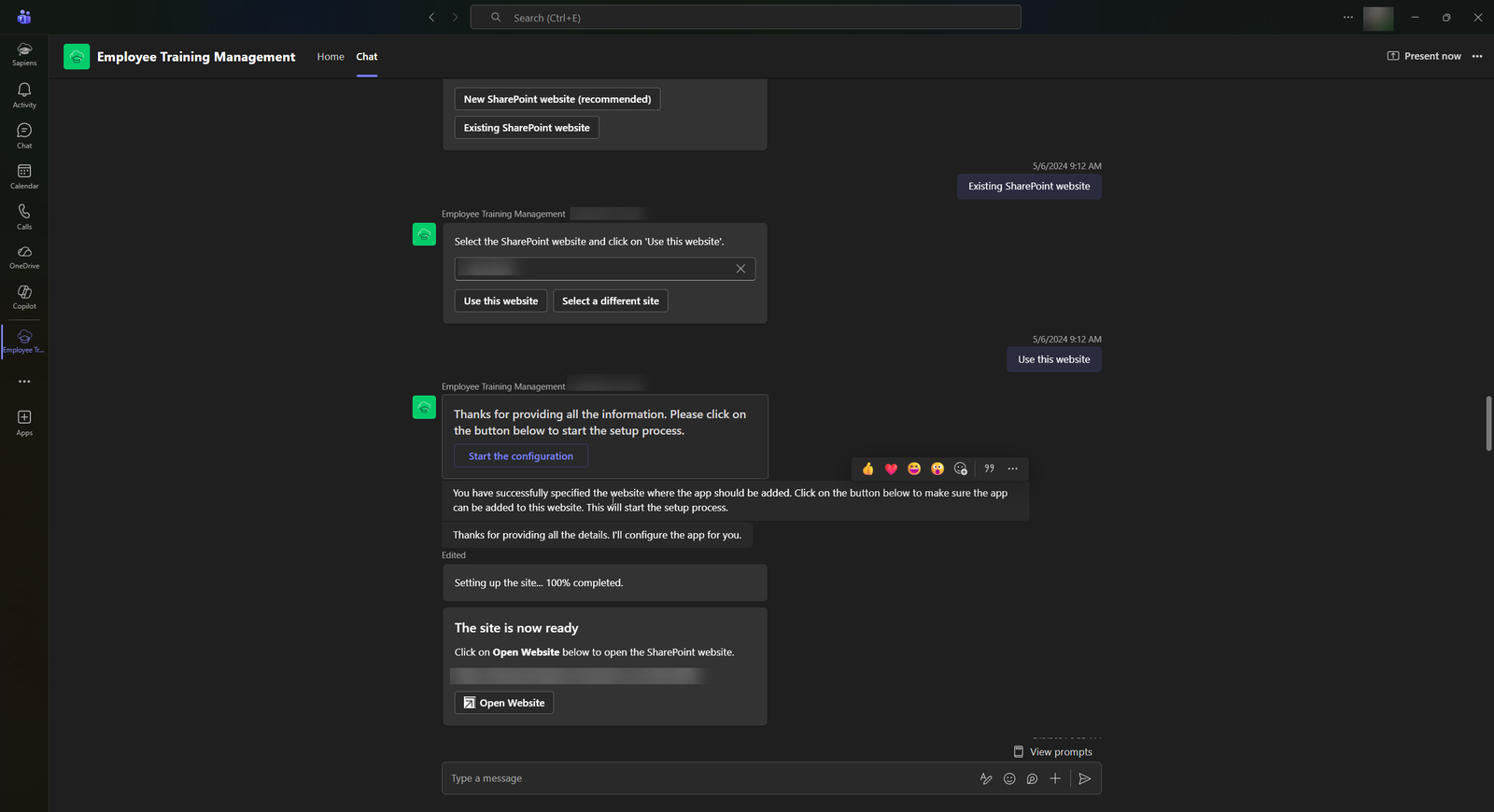
Option 2: Install directly from the SharePoint Store / Microsoft Marketplace
-
Visit the app listing:
https://marketplace.microsoft.com/en-us/product/WA200006645?tab=Overview -
Click “Get it now” to add it to your tenant.
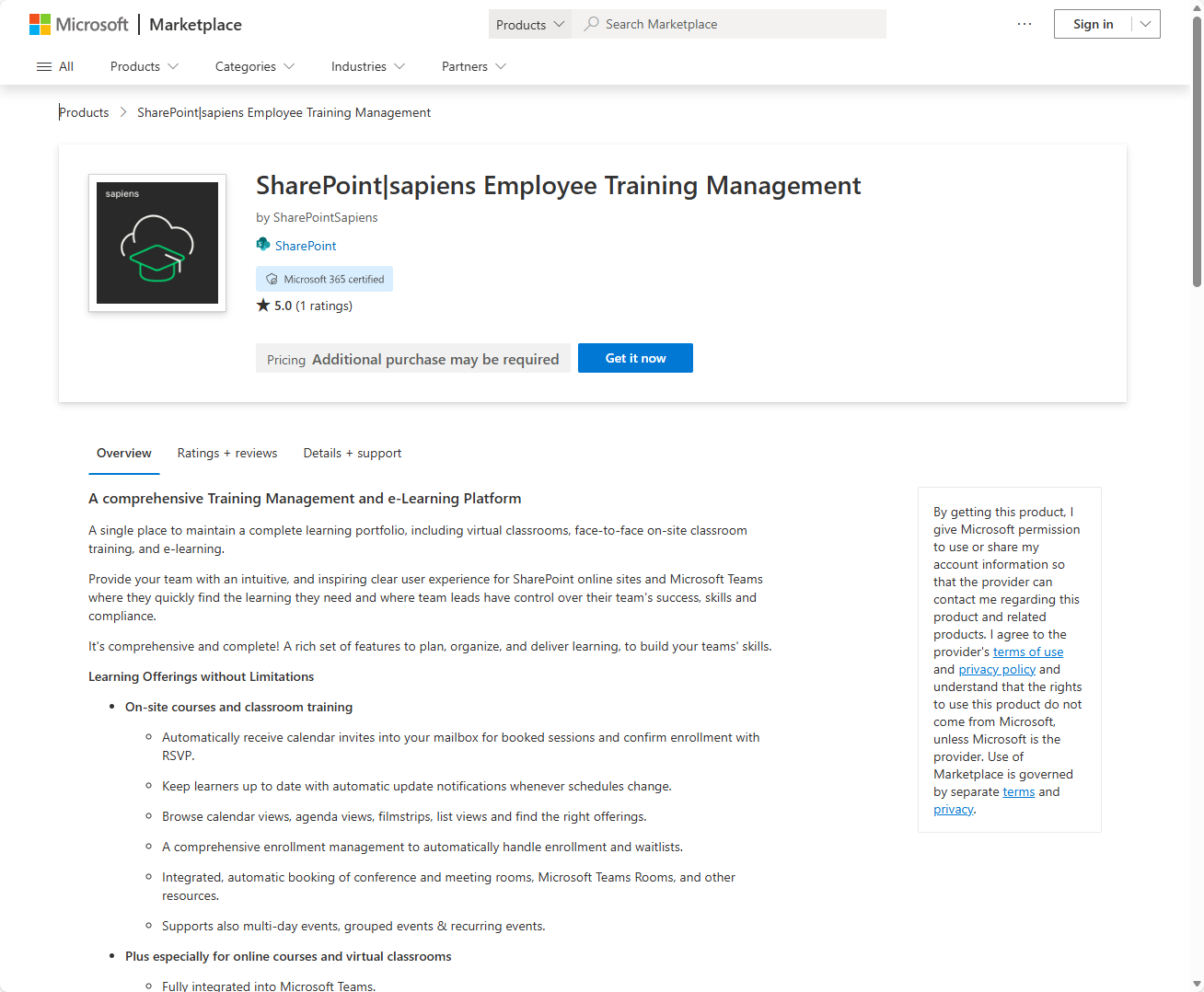
Once the app has been added to your tenant:
-
Open the SharePoint site where you want to install the app. Important: Don’t configure the app on your tenant app catalog site. Open the site you prepared (see Site Recommendations) to install and configure the app there.
-
Click New → App.
-
Add the SharePoint|sapiens Employee Training Management app to the site.
After installation, you will see a notification banner with:
▶ “Click here to start the configuration”
Click it and follow the steps to complete the setup.
For more information, open the step-by-step installation guide.
Next steps
After the app is installed and the initial configuration is completed, we recommend the following:
1. Configure site permissions
If you want to grant others access to the Employee Training Management site:
-
Add learners to the Site Visitors group (read-only access; for people who only view events and courses with permissions to enroll and complete courses)
-
Add organizers to the Site Members group (edit permissions; for managing events and courses, and for tracking participation and course completion)
This ensures users receive the appropriate level of access.
2. Set up email configuration
For a reliable production setup, we recommend using a dedicated Exchange Online mailbox for sending event-related notifications.
Configuration guide: https://www.sharepointsapiens.com/help/documentation/configure-email-settings-in-sharepoint/
3. Explore advanced features
Once the basics are in place, you can configure optional advanced features, integrations, templates, and automation.
All advanced configuration topics are documented in our detailed help articles.
Need help?
If you encounter any issues during installation or configuration, or if you would like assistance setting up the Employee Training Management app, our support team is here to help.
We’re happy to assist you with troubleshooting, installation guidance, or any questions you may have.