
Applies to Event Management & Employee Training Management
Troubleshooting: Re‑authorizing the Email Account
Overview
The email account used by the application to send and receive emails must be authorized in order to function correctly.
In certain situations, this authorization can become invalid and needs to be renewed.
Common reasons for re‑authorization include:
-
The mailbox password was changed
-
Multi‑Factor Authentication (MFA) was enabled or modified
-
Security or tenant policy changes invalidated existing tokens
When any of these changes occur, all previously issued authentication tokens become invalid. As a result, the email account must be re‑authorized through the application settings.
Who Can Perform This Action
-
Regular users can usually re‑authorize the mailbox by signing in again.
-
Administrators (Global Administrator or Application Administrator) may be required if additional permissions must be granted.
How to Re‑Authorize the Email Account
Step 1: Open App Settings (For Administrators)
-
Open the SharePoint website where the Sapiens app is installed
-
Navigate to the For Administrators section and click on Open app settings.
-
Locate the configured email account used for sending/receiving emails.
Step 2: Start Re‑Authorization
-
Click Authorize next to the email account.
-
When prompted, sign in using the credentials of the configured mailbox.
-
Complete the authentication flow.
In most cases, this is sufficient and the email account will be re‑authorized successfully.
Administrator Consent Required (Optional)
In some environments, Microsoft Entra ID may require additional permission consent. This typically happens when:
-
New permissions are required
What the User Will See
Depending on the tenant configuration, one of the following will happen:
-
Approval request enabled
The user is prompted to send an approval request to an administrator.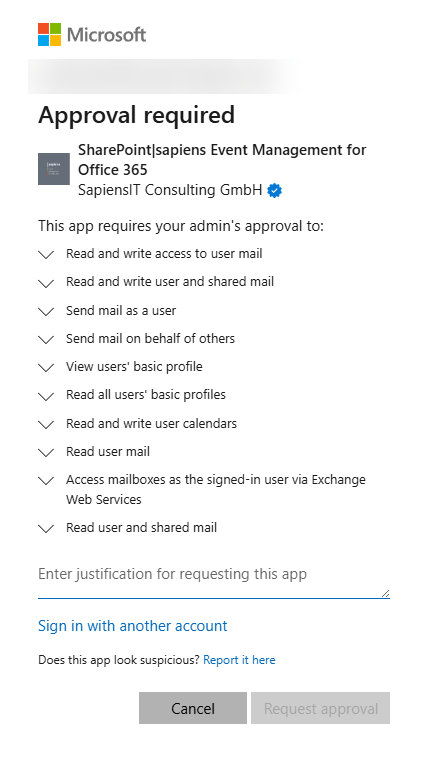
-
Approval requests disabled
The user is shown a message indicating that an administrator must sign in to approve the app.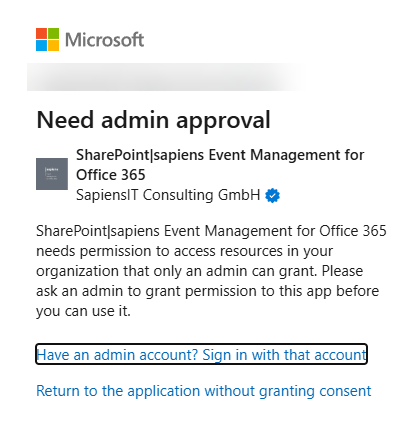
In both cases, a Global Administrator or Application Administrator must complete the authorization and consent to the requested permissions.
Renewing Login Without Granting Additional Permissions
If the goal is only to renew the account login (for example, after a password change) and no new permissions are required, users can proceed without administrator consent:
-
When the permission consent screen appears, cancel the consent request, by clicking on Cancel or Return to the application without granting consent.
-
On the next screen, click Login.

-
Sign in with the mailbox credentials.
This will renew the authentication tokens without requesting additional permissions.
Verification
After re‑authorization:
-
Confirm that the email account status shows as valid. To check, click on the Verify button
-
Send a test email by enrolling yourself in an upcoming event
Common Issues
| Issue | Resolution |
|---|---|
| “Authorization expired” | Re‑authorize the mailbox from App Settings |
| MFA enabled recently | Complete re‑authorization |
| Admin consent required | Contact a Global or Application Administrator |
| Permission request not desired | Cancel consent and use Login instead |
Summary
Re‑authorizing the email account is typically required after security‑related changes such as password updates or MFA activation.
In most cases, users can resolve the issue by clicking Authorize and logging in again. Administrator involvement is only necessary when the tenant requires additional permissions to be approved.