
Applies to Event Management & Employee Training Management
How to Enable External Organizers for Events in Sapiens Event Management
This article explains how to configure Sapiens Event Management so external users can be selected as organizers for events and allows you to send them organizer‑specific email notifications.
Overview
To allow selecting external organizers when creating or managing events, you will:
- Create a SharePoint Contacts list for external organizers
- Create a lookup site column referencing that list
- Add the column to the Event Catalog and Scheduled Events lists
- Enable the column in the app settings
- Configure email templates for notifying external organizers
After these steps, external organizers can be added directly in Event forms, and they will receive tailored email notifications.
Step 1 — Create a Contact List for External Organizers
- Open Site Contents.
- Click Return to classic SharePoint (bottom left).
- Select Add an app.
- Choose the Contacts list template.
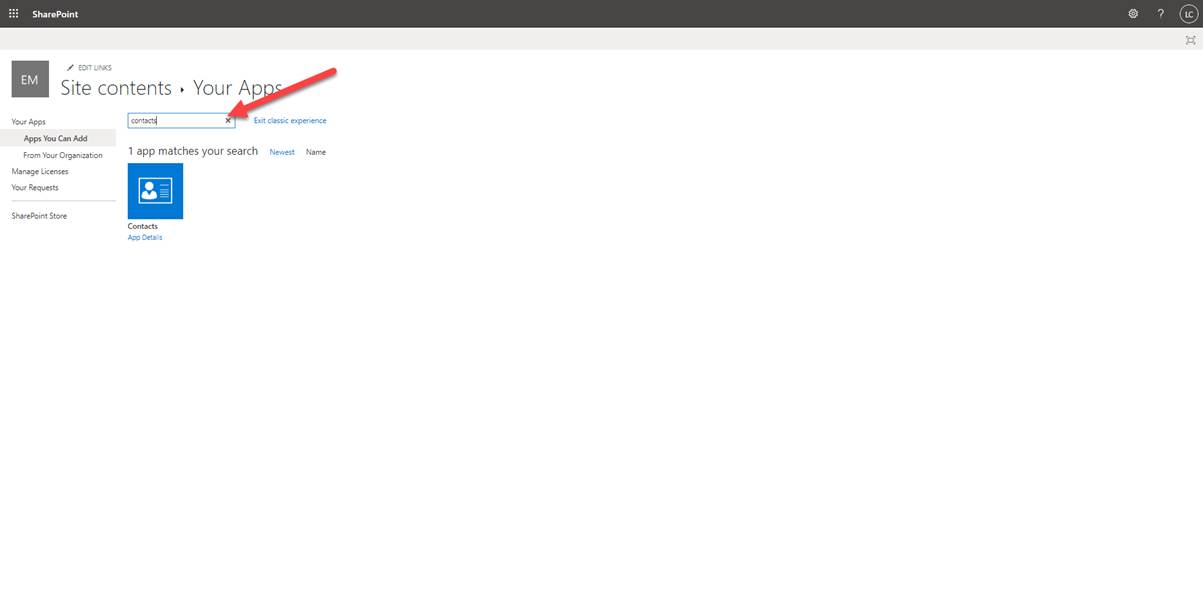
- Name the list, e.g., External Organizers.
- Click Exit classic experience.
This list will store the names and email addresses of all external organizers you want to use. You can create them in the list, import them from your Outlook contacts or create new contacts directly from the event form.
Step 2 — Create a Lookup Site Column
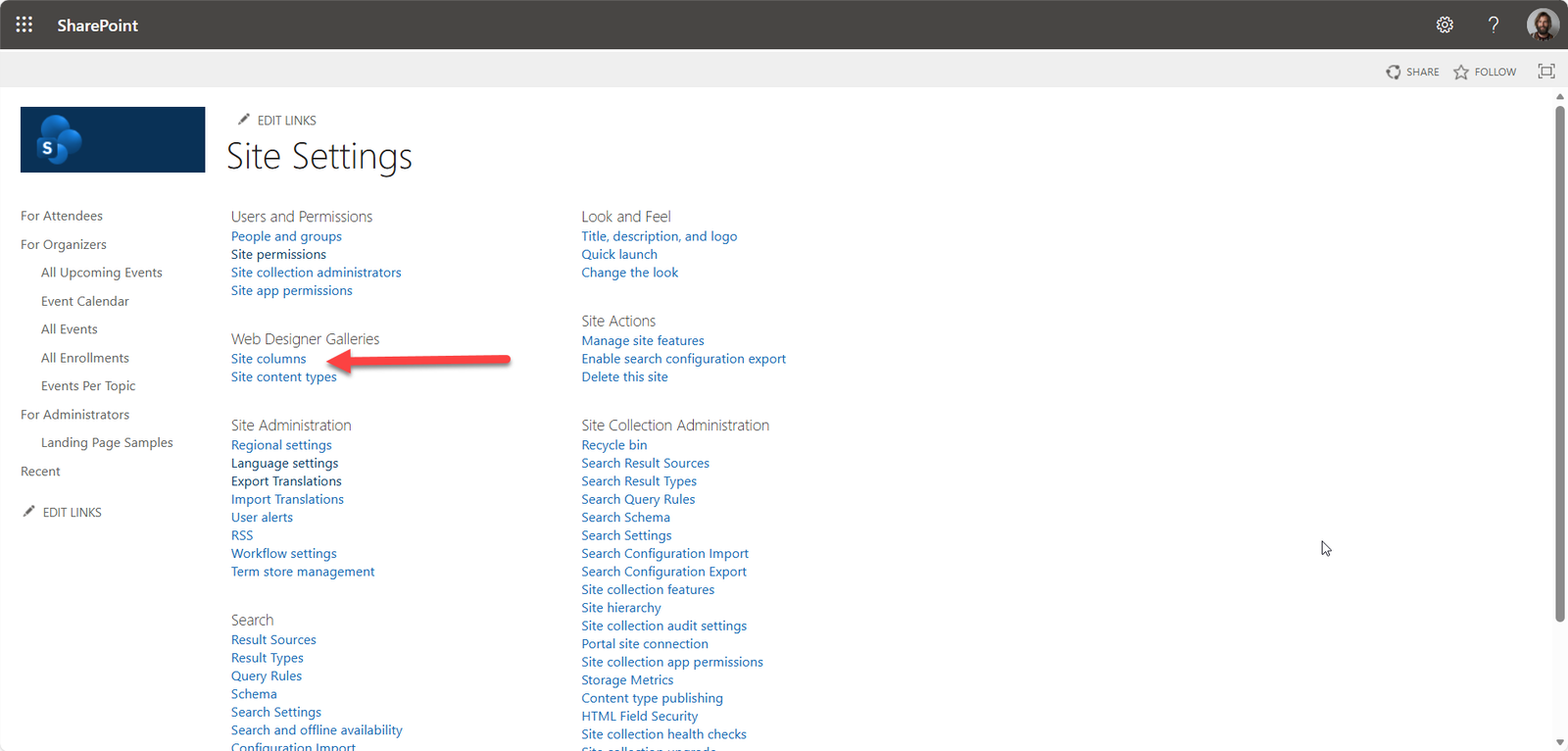
- Open Site Settings.
-
Select Site columns → Create.
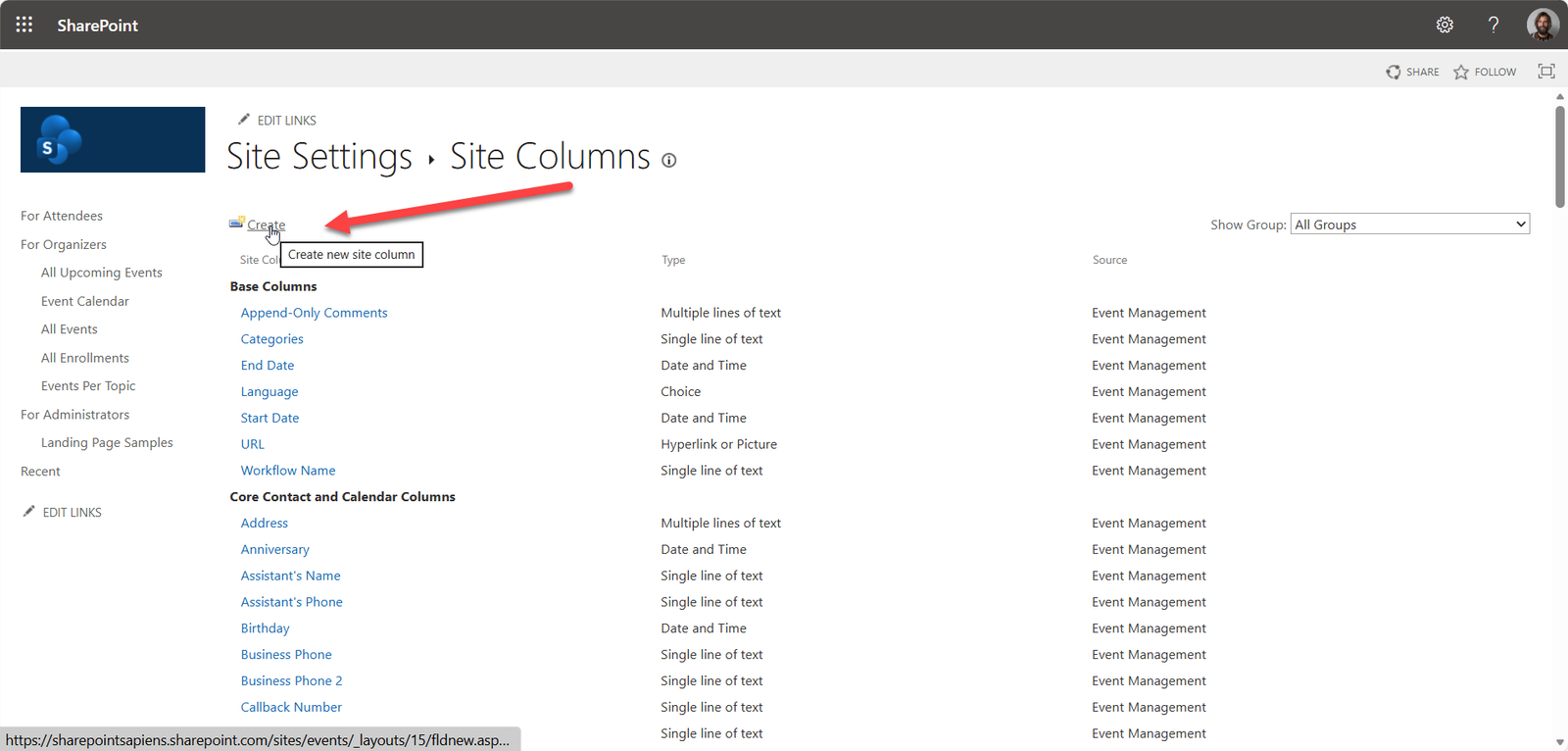
- Configure the column:
- Type: Lookup (information already on this site)
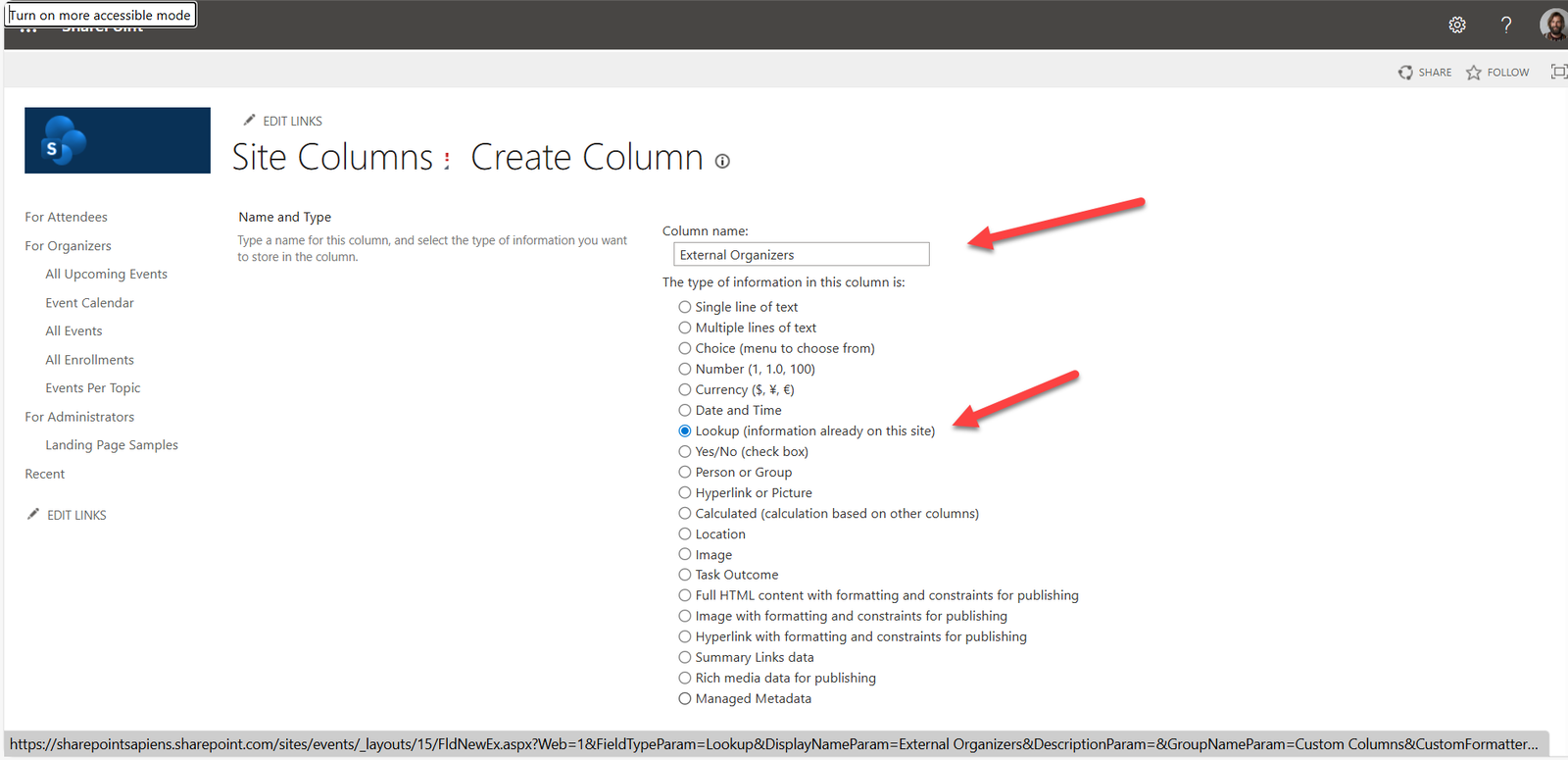
- Get information from: External Organizers list
- In this column: Full Name or Email
- Enable Allow multiple values
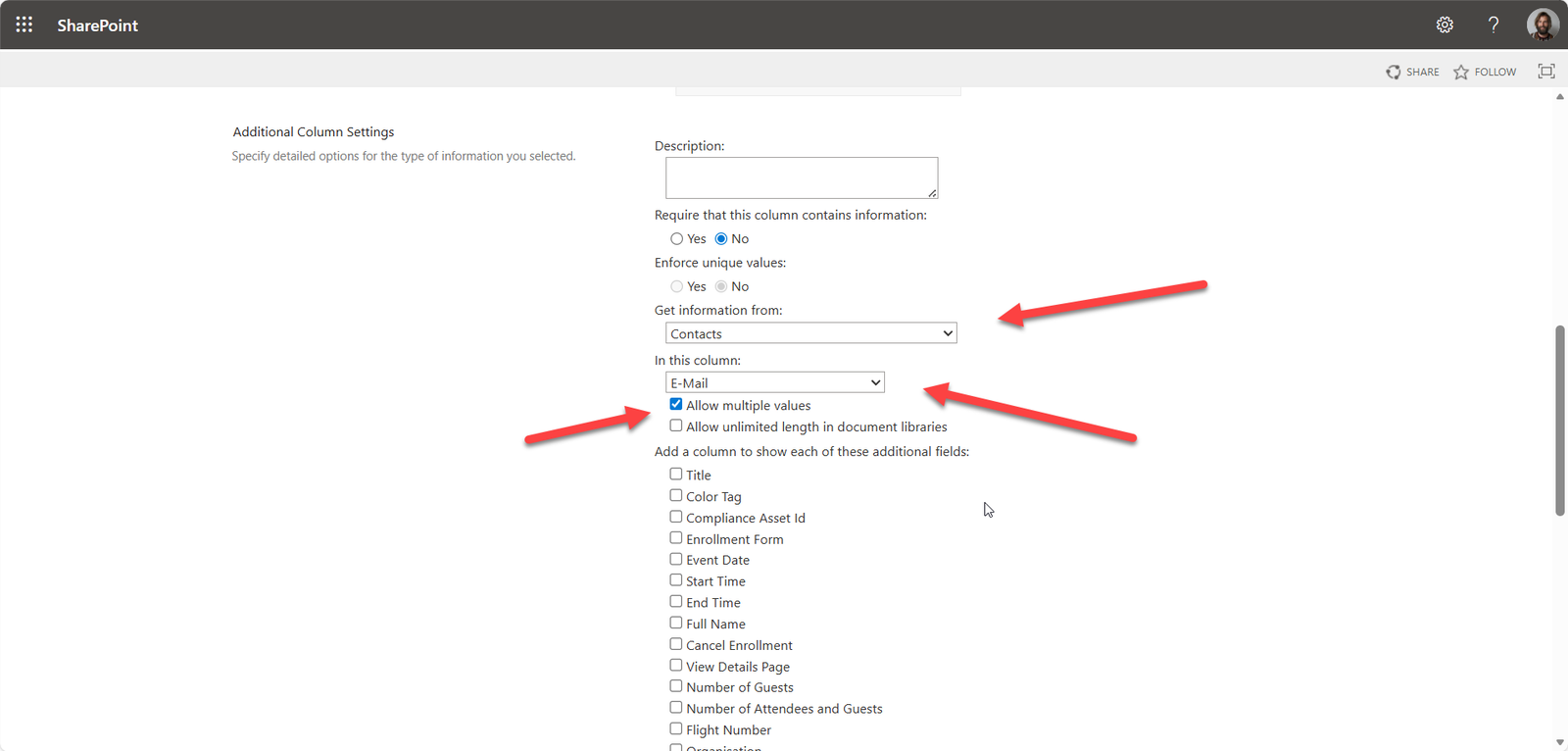
- Type: Lookup (information already on this site)
- Click OK.
This creates a reusable site column referencing your external contacts.
Step 3 — Add the Column to Event Lists
You need to add the new lookup column to both lists used by the app:
- Event Catalog
- Scheduled Events
For each list:
- Open List Settings
- Select Add from existing site or list columns
- Choose the newly created lookup column
- Click Add
Step 4 — Enable the Column in App Settings
- In the Event Management app, open the For Administrator section.
- Select Open app settings.
- Under the Attendees section, enable your new lookup column.
This makes the field available in the event form.
Step 5 — Configure Email Templates
- In app settings, open Email Templates.
- Locate the template corresponding to your new organizer column.
- Enter the subject and body of the email.
- Click Save.
External organizers will now receive customized emails when added to an event.
Step 6 — Add the Field to the Event Form (if needed)
If the field does not appear automatically:
- Open an event form
- Click Edit form (top-right)
- Use the + icon to add the new organizer field to the form
- Save the changes
For help with customizing forms, see:
Edit forms in SharePoint | Sapiens Event Management – YouTube
Result
You can now select external organizers in both the Event Catalog and Scheduled Events lists. When added to an event, these external contacts will receive email invitations using your configured templates.
If you need help or have follow-up questions, feel free to reach out.