
Applies to Event Management & Employee Training Management
Understanding Detail Pages and Course Pages
Overview
In SharePoint|sapiens apps such as Event Management (EVM) and Employee Training Management (ETM), detail pages and course pages are used to provide a more controlled and user-friendly way of displaying information.
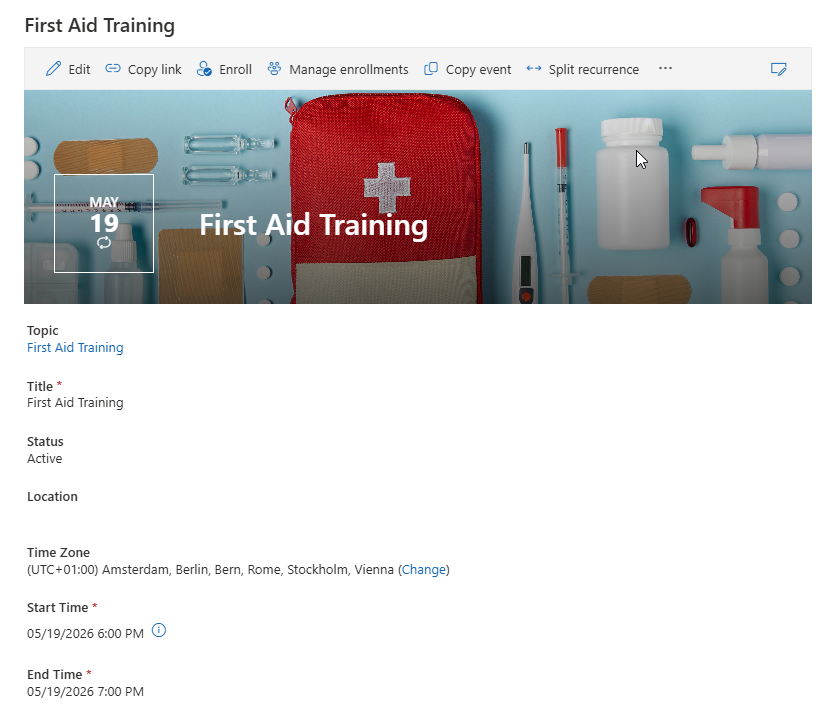
In standard SharePoint lists, selecting an item typically opens the list form, which shows all available fields and commands. While this is useful for administrators or organizers, it is often not suitable for end users such as event participants or learners, as it can be too complex and may expose unnecessary functionality.
Detail and course pages solve this by providing:
-
A simplified and focused view of relevant information
-
A customized user experience depending on the audience
-
The ability to combine list data with additional SharePoint web parts
For example, these pages allow you to:
-
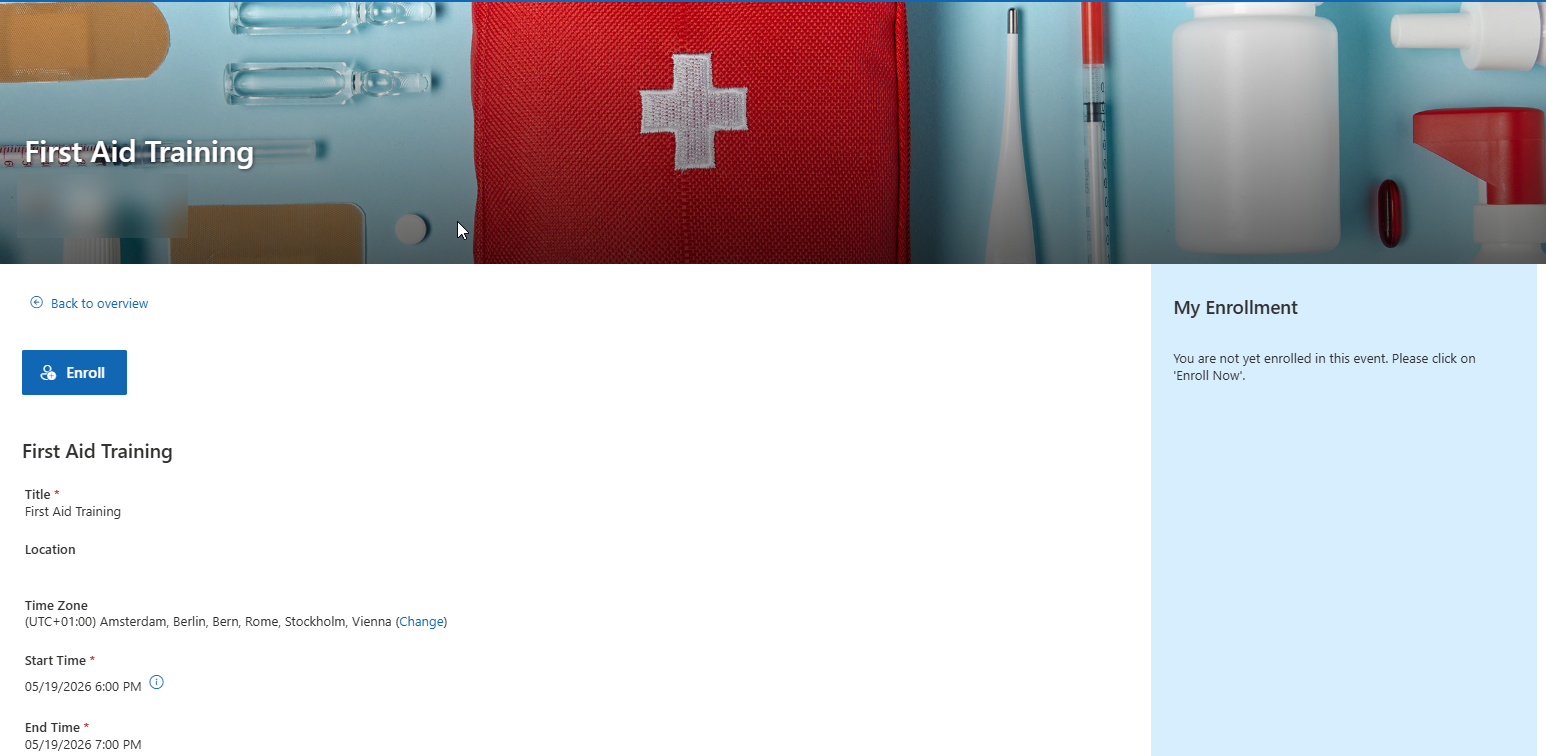
Display a fully customizable Enroll or Register button
-
Show related content such as all events linked to a topic or course
-
Present information in a structured and visually appealing way
Using the different “open page” columns (explained below), you can also control which experience users get:
-
End users (enrollees or learners) can be directed to customized detail or course pages
-
Organizers and administrators can continue working with the full list form and all available commands
This separation ensures a cleaner and more intuitive experience for end users while still providing full functionality for advanced users.
List Form:
Event Page:
This article explains:
-
How course or details pages are structured
-
How default and custom pages work
-
How they are linked to list items
Page Architecture Overview
All detail and course pages are stored in the Site Pages library using this structure:
/SitePages/detailspages/[ListURL]/[ContentTypeName]/
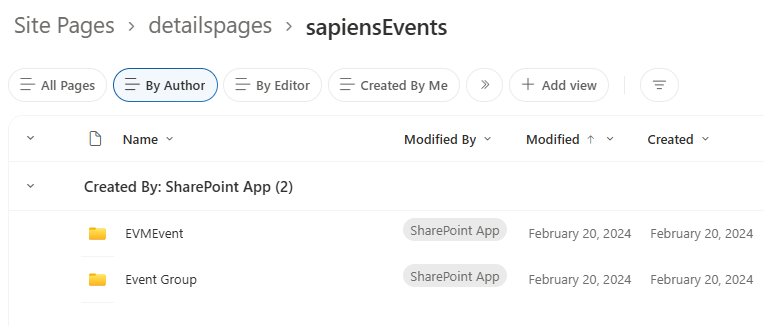
List URLs and Content Types
Event Management (EVM)
-
sapiensEvents
- EVMEvent
- Event Group
-
sapiensCatalog
-
Topic
-
Employee Training Management (ETM)
-
sapiensEventsETM
-
Training Event
-
Event Group
-
-
sapiensCatalogETM
-
Instructor-led training
-
Self-paced training
-
e-learning course
-
-
sapiensCurriculaETM
-
Curriculum
-
Folder & Page Structure
Site Pages
└── detailspages
    ├── sapiensEvents
    │   ├── EVMEvent
    │   │   ├── default.aspx
    │   │   ├── template.aspx
    │   │   ├── 23_ab12cd.aspx
    │   │   └── 45_xy98kl.aspx
    │   │
    │   └── Topic
    │       ├── default.aspx
    │       ├── template.aspx
    │       └── 12_qw34er.aspx
    │
    ├── sapiensCatalogETM
    │   ├── Instructor-led training
    │   ├── Self-paced training
    │   └── e-learning Course
    │       ├── default.aspx
    │       └── template.aspx
    │
    └── sapiensCurriculaETM
        └── Curriculum
            ├── default.aspx
            └── template.aspx
Default Pages vs Custom Pages
Each content type folder contains:
-
default.aspx→ fallback page -
template.aspx→ used to create custom pages
default.aspx
-
Used when no custom page exists
-
Should be configured for most use cases
-
Changes to a default page affect all items without a custom page
template.aspx
-
Used as the base for custom pages
Custom Pages
Custom pages:
-
Can be created per item
-
Follow this naming pattern:
[ItemID]_[randomString].aspx
-
Are stored in the same folder as the template
Creating and Linking Course or Details Pages
Lists include columns like:
-
Event Page
-
Topic Page
-
Course Page
-
Curriculum Page
Behavior
-
Initially → shows “Create event page/Create topic page/Create course page/Create curriculum page” link
-
After creation → shows link to the custom page with the link name Event page/Topic page/Course page/Curriculum page
Opening Pages
The columns mentioned below can be selected in the classic edit view experience.
The Title field:
-
“Title (open details page)” (EVM)
opens:
-
Custom page (if it exists)
-
Otherwise →
default.aspx
This column can be used in views where users should open the detail or course page instead of the list form.
In the list Scheduled Events (EVM) or Scheduled Training Events (ETM) there are the following title fields in addition
-
“Title (open topic details)” (EVM)
-
“Title (open course details)” (ETM)
opens:
-
The custom page of the topic or course (if it exists)
-
Otherwise →
default.aspxof the topic -
If the event is not based on a topic, it follows the same behavior as the Title (open details page) column
This column can be used in views that should open the page of the topic for every event.

Extending with Additional Content Types
To add new content types:
-
Add content type to list
-
Create folder:
/SitePages/detailspages/[ListURL]/[ContentTypeName]/
-
Add:
-
default.aspx -
template.aspx
-
Configure pages
Best Practices
-
Configure default pages first
-
Create custom topic or course pages when you need different banner images (Learn more) or layouts for specific items
-
Use custom pages only when necessary
-
Keep templates clean and reusable
-
Follow folder naming conventions exactly
Related Articles
Link to: