
Applies to Employee Training Management
How to: Add users to the Employee Training Management learner list
This article describes how to add users to the Employee Training Management learner list.
Add learners to the Employee Training Management App
The learner list is a SharePoint list that will be created by the SharePoint|sapiens Employee Training Management app. There are two ways of adding users.
Automatically added upon enrollment
Note that users will be added to this list automatically as soon as they enroll in an event or a self-paced training the first time.
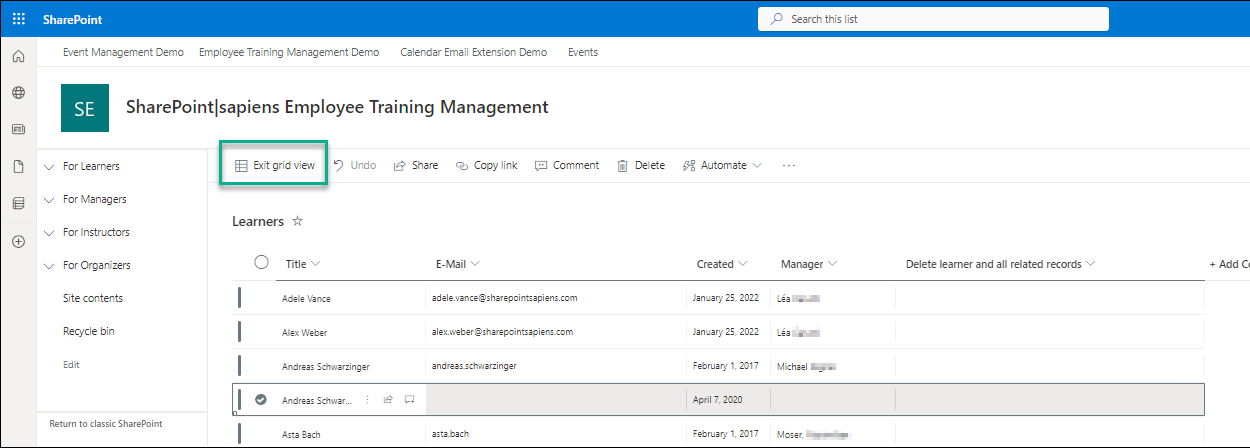
Add users in the list with the quick edit mode
However, you also have the option to add users to this list using the quick edit mode.
Import users with Power Automate
The best option to add users to the learner list is by using Power Automate.
Here you can download a Flow template that you can import into your Microsoft Flow app.
To import the flow, open https://make.powerautomate.com/solutions, and click on Import solution.
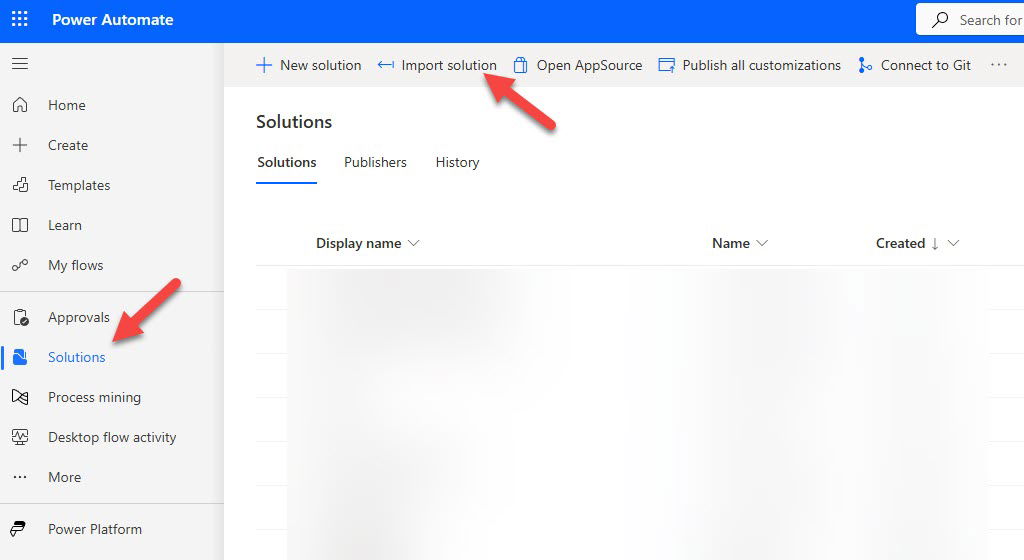
Select the downloaded ZIP package and click on Next two times and then in Import.
Once the solution is imported (this may take a few minutes), click on My flows on the left or open https://make.powerautomate.com/flows.
Open the flow “Import Learners from Entra ID” and verify the steps.
This flow starts with a recurrence trigger that runs every 5 days. The only other action you have to update is the 2nd one (Enter your SharePoint website). In the Value field, enter the URL of your SharePoint website.
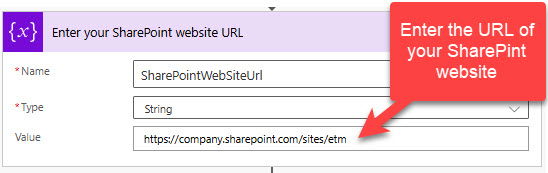
You can now save the flow, turn it on, and click on Run now. This should now add all users to the learner list.
Depending on the Recurrence trigger this flow will run regularly and add and update users. In case you need to update other columns in the learner list (e.g. Department, Job Role, Secondary Manager), add the columns to the learner list in SharePoint and update the flow accordingly.